The short version
- Match each label photo to the physical item before you import it.
- Import the photos for one item, then add facts you learned by handling it.
- Keep Snap open until photo uploads finish and review the draft before posting.
Sort the photos using a detail you can check
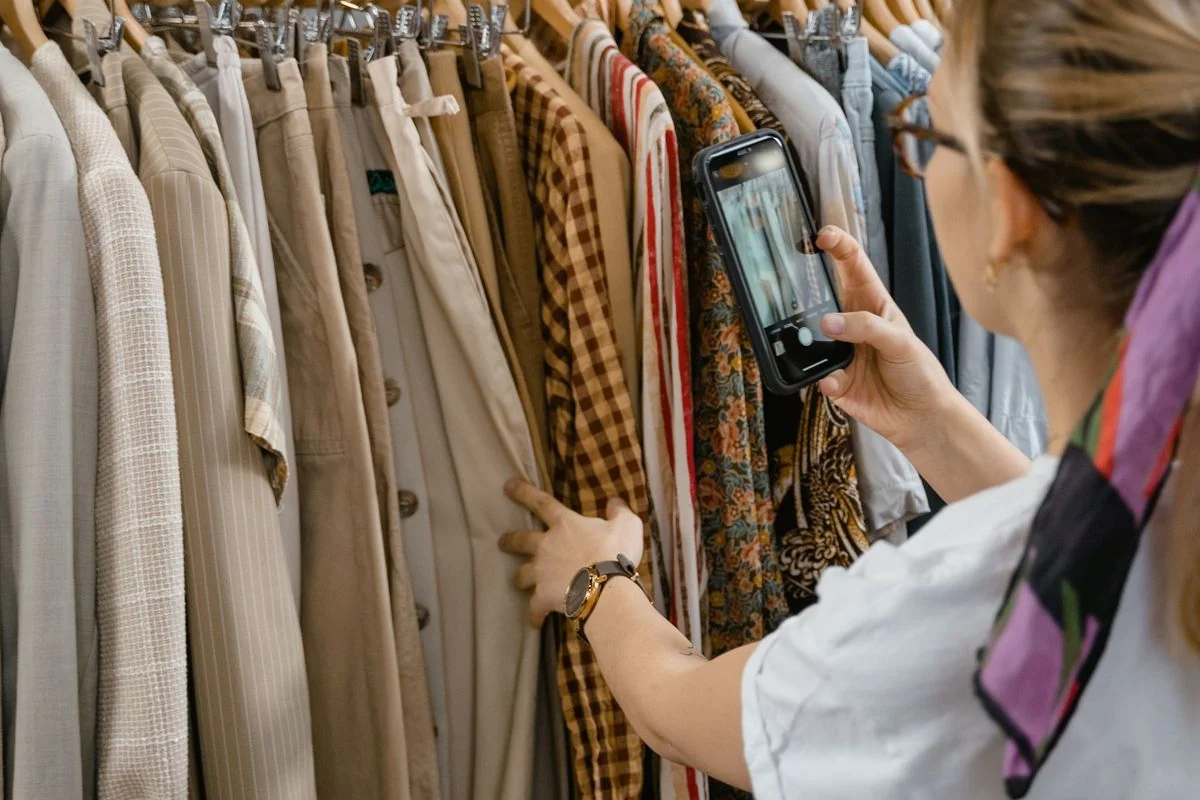
Lay out one shirt and open its full front photo. Find something that stays visible in another shot, such as the stripe beside the chest pocket. Follow that detail into the collar and size-label shots. Time order helps until you discover you went back to photograph a missing tag at the end of the session.
If two shirts have the same pattern and the label photos could belong to either, take a fresh photo with the collar, fabric and label in the same frame. You only need to replace the uncertain shot. Keep close-ups of wear with the wider view that shows where each mark sits.
Import one item and add what the photos leave out
Open Listalong Snap on Android and use the photo library option to add the images for that shirt. Put the clearest whole-item shot first. Read the size and fabric label, check the buttons, and add any measurements you took. A useful seller note might read “Chest measures 22 inches across, laid flat. Bottom button is a replacement.”
Generate the draft and keep Snap open until the photo uploads finish. Once the server has received them it can continue processing. Move on to another item when the photos and notes for the first one are together. The Android store listing describes the upload and review steps.
Check the field most likely to have crossed over
For similar shirts, open the label photo beside the draft and check the size first. Then compare the cover photo, color, measurements, and condition note. A correct title can still sit above a wrong size field. Scrutinize the description if two items share nearly all their details.
Set your price, shipping, and return choices before you post. If you’re missing a measurement, swipe left in the review screen to save the item for later. For a ready item, swipe right to post and check Activity for its status. That gives you a record to consult before submitting the same shirt again.
Common questions
Do I have to retake photos I already have?
You can import existing item photos from your Android phone into Snap. Retake a shot when you can’t read a label, identify which item it belongs to, or see a flaw clearly.
Can I finish a listing later?
Yes. In Snap’s review screen, swipe left to save the item for later. Open it again when you have the missing photo or detail.